Notes, Block Visibility, and Key Changes for Developers Working With ACF
WordPress 6.9 is being released today and brings a set of meaningful improvements to the block editor. The focus this cycle has not been on headline features but on the practical refinements that make daily publishing easier, clearer, and more collaborative. This post highlights the most useful changes for editorial teams, along with important technical notes for developers who build custom blocks, particularly with ACF’s block.json workflow.
Editor Improvements That Matter
1. Block Notes: Contextual Comments Inside the Editor
WordPress 6.9 introduces block-level comments, referred to as Notes. These allow editors, writers and designers to leave comments attached to specific blocks in a piece of content. This solves a long-standing problem in the editor: feedback no longer needs to be passed around through email or external documents, and reviewers no longer have to reference “the third paragraph” or “the image halfway down the page.”
This pushes WordPress closer to a modern collaborative editing environment while keeping everything inside the platform itself.
How does it work?
In the editor, you’ll see a new item in the block settings for “Add Note”
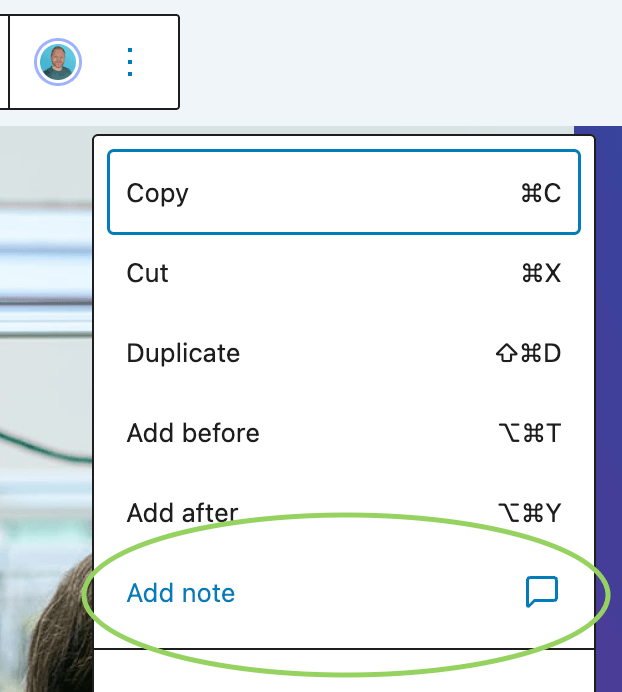
When a block has a note, you’ll see a Gravatar image indicting it.

When you click that, you’ll open the notes sidebar view.

Notes can be replied to, edited or resolved.

2. Hide Blocks Without Removing Them
Another welcome addition is the new visibility control that allows any block to be hidden from the front-end without deleting it. This is useful when preparing alternative layouts, temporary content, seasonal sections, or work-in-progress elements that are not ready to publish. Hidden blocks remain fully editable and can be restored at any time.
This feature is simple but has a real impact on day-to-day editing. It gives teams more flexibility in drafting and staging content without touching version history or removing markup from posts.
How does it work?
In the editor, you’ll see a new item in the block settings for “Hide”
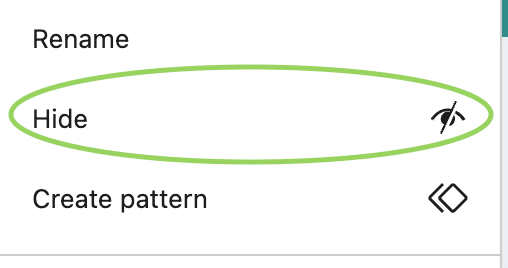
When a block is hidden, a new icon appears in the document overview to indicate it’s status.

n.b. The block is also hidden in the editor, which was a suprise to me. You can only see hidden blocks in the Document Overview panel.
3. Improvements Across the Editor
WordPress 6.9 also delivers improvements such as:
- New core blocks including Accordion, Terms Query, Math, Time to Read and Word Count
- Better drag and drop behaviour
- More consistent global styles handling
- Faster editor load and sidebar interactions
None of these are transformative on their own, but together they make the editor feel more predictable and polished.
Developer Considerations, Especially for ACF Block Authors
If you work with custom blocks, particularly ACF Blocks that use block.json files, there are a few important technical considerations relating to Notes and block-level controls.
There is no block-level Notes opt-out in the schema
The new Notes system works at the post editor level. It is not currently configurable on a per-block basis. Even though some documentation refers to Notes as a “block level feature,” there is no supported mechanism for disabling Notes for individual blocks using block.json. The official ACF block.json schema confirms this.
This means that adding something like:
"supports": {
    "notes": false
}
will validate, but will not disable Notes for that block.
What to watch for after the release
Two sources will indicate when or if proper per-block configuration for Notes becomes available:
- The ACF block.json schema repository
- The official WordPress Block Supports documentation
If Notes becomes part of block supports, these are the locations where it will be documented first.
Until then, developers should treat Notes as a global editor feature that applies to all blocks within a supported post type.